Guide: How to export data for the INE occupancy survey for hotel establishments with Roomdoo
Update [November 2026]
The INE has replaced its old platform with IRIA, and some screens in this guide have changed. The up-to-date guide, with IRIA screenshots and the most common upload errors, is in Roomdoo Academy.
Step-by-step guide to send data from the INE tourist accommodation occupancy survey for hotel establishments from Roomdoo
The EOH is the Hotel Occupancy Survey, you must receive an official communication with the necessary data to proceed to complete it. This communication, which can be by e-mail or letter, contains a file number and a password.
ℹ️ Steps to complete the Hotel Occupancy Survey with Roomdoo
- Receives notification from INE
- You will receive a communication from INE with the order number and a password. This communication may arrive by e-mail or letter, requesting you to send the occupancy data during specific dates. It is important to send it as soon as possible to avoid penalties and to solve any possible error.
- You will receive a communication from INE with the order number and a password. This communication may arrive by e-mail or letter, requesting you to send the occupancy data during specific dates. It is important to send it as soon as possible to avoid penalties and to solve any possible error.
- 2. Go to the INE website
- Go to IRIA, the INE platform, to answer the EOH survey.
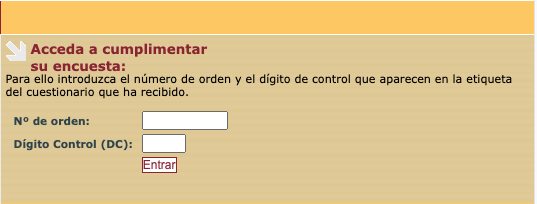
- Enter the Order No. and Control Digit (CD) provided to you.
- Go to IRIA, the INE platform, to answer the EOH survey.
- 3. Data upload to the INE platform
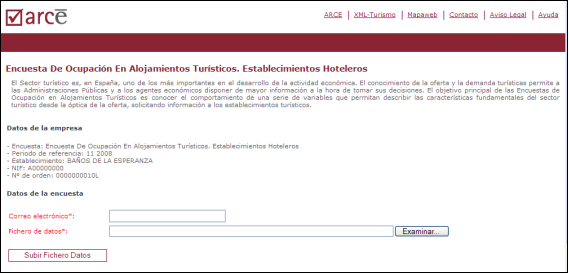
- Once inside, add your hotel's valid email address.
- In the corresponding section, click on "EXAMINE" and upload the XML* file with the requested data.
- Once inside, add your hotel's valid email address.
- 4. Generate the XML file from Roomdoo
- Having selected the hotel from which you want to export the data, access the Roomdoo planning.
- In the side menu, in the "Reports" section, click on the "INE" report.
- Select the whole month the INE asks for, from the 1st to the last day, even if the questionnaire mentions a week or a fortnight, and click on "Generate Report".
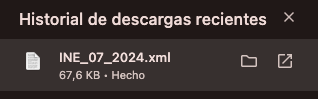
- Download the report and save it to your computer.
- Having selected the hotel from which you want to export the data, access the Roomdoo planning.


- 5. Upload Roomdoo XML file to INE
- In the INE platform, you must upload the file generated by Roomdoo.
- Once uploaded, wait a few seconds and all the collected information will be loaded.
- To finish the process correctly, you must go to the "Price and Staff" tab and click on "Submit Form".
- At that moment, a check is made to ensure that everything is correct and, if not, these errors will be displayed on the screen and until they are corrected, the file will not be sent.
- Example of notification that the file is correct:
- When you click "OK", you will obtain the Acknowledgement of Receipt of having sent the file correctly.
- In the INE platform, you must upload the file generated by Roomdoo.


- 6. Error correction and validations
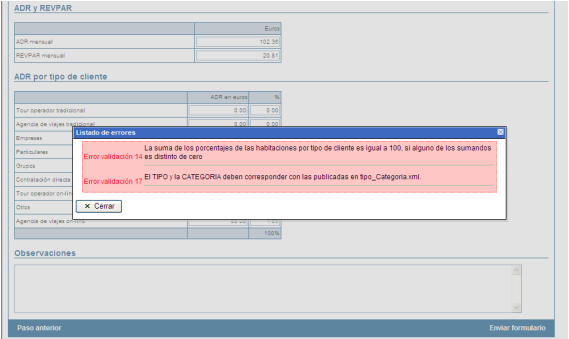
- If there are errors in the file, they will be displayed on the screen when you try to send it. Correct the errors indicated and try again. Once the file is correct, click on "Accept" to receive the Acknowledgement of Receipt.
- This is an example of error notification detected in the file.
- Support: if you have any questions, you can contact us at soporte@roomdoo.com, attaching a screenshot of the error so that we can help you more precisely.
- If there are errors in the file, they will be displayed on the screen when you try to send it. Correct the errors indicated and try again. Once the file is correct, click on "Accept" to receive the Acknowledgement of Receipt.
INE Detailed Manual
If you have any doubts, you can always consult the INE manual in detail through the following link:
https://roomdoo.com/wp-content/uploads/2024/10/MANUAL_XML.pdf
For any questions or errors regarding the procedure with the INE survey, please contact soporte@roomdoo.com.
EOAP: for the Tourist Apartment Occupancy Survey (EOAP), ask support for the file, giving the property and the month, or fill in the on-screen form in IRIA. See the apartments guide.